The UFormat parameters allow us to mention a format that we want to display in Unix format. The syntax of this format command is as follows Get-Date -UFormat %\<value\>. The cmdlet -UFormat always returns an output as a String value. Below are various specifiers list and their descriptions that are used with -UFormat parameters provided by Microsoft.
List of UFormat Specifiers
| Date and Time | c | Returns date and time in abbreviation (Wed Jan 6 18:35:23 2021) |
| Time | p | AM or PM |
| r | returns time in 12-hour format (08:24:43 AM) | |
| R | returns time in 24-hour format without seconds (15:32) | |
| T or X | returns time in 24-hour format (15:32:43) | |
| Z | returns time zone offset from Universal Time Coordinate (UTC) | |
| Hour | k or H | returns hour in 24-hour format (17) |
| I or l (upper case ‘I’, (lower case L) | returns hour in 12-hour format (05) | |
| Minutes & Seconds | M | returns minutes (40) |
| S | returns seconds (04) | |
| s | returns seconds elapsed since January 1, 1970, 00:00:00 (1150451174.95705) | |
| Date | D | returns date in mm/dd/yy format (eg. 01/18/21) |
| x | returns date in standard format for locale (06/12/21 for English-US) | |
| Month | b or h | returns month name in abbreviated (Jan) |
| B | returns month name in full (January) | |
| m | returns month number (06) | |
| Year | C | returns century (21 for 2021) |
| g or y | returns year in 2-digit format (21) | |
| G or Y | returns year in 4-digit format (2021) | |
| Week | U or W | returns the week of the year (00-52) |
| V | returns the week of the year (01-53) | |
| Day | a | returns day of the week as abbreviated name (Mon) |
| A | returns day of the week as full name (Monday) | |
| u or w | returns day of the week as number (Monday = 1) | |
| d | returns day of the month in 2 digits (05) | |
| e | returns day of the month – digit preceded by a space ( 5) | |
| j | returns day of the year – (1-366) | |
| Special Characters | n | returns newline character (\n) |
| t | returns a tab character (\t) |
Get-Date with -UFormat parameter that uses various format specifiers returns a String output. For example, look at the result of the following -UFormat cmdlet:
- Get-Date -UFormat “%A %m/%d/%Y %R %Z

How the above UFormat specifiers return the string value is defined below:
| Specifier | Definition |
|---|---|
| %A | returns day of the week as full name (Wednesday) |
| %m | returns month number (01) |
| %d | returns day of the month in 2 digits (06) |
| %Y | returns year in 4-digit format (2021) |
| %R | returns time in 24-hour format without seconds (21:38) |
| %Z | returns time zone offset from Universal Time Coordinate (UTC) (+05). |
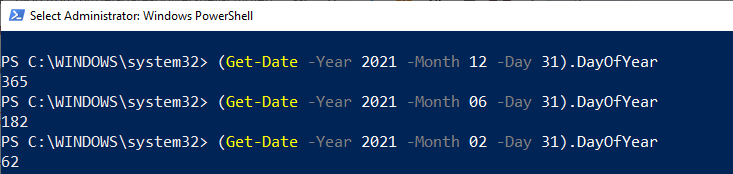
Calculate and display a date’s day of the year (Get-Date -Year 2021 -Month 12 -Day 31).DayOfYear
To calculate the date’s of the year, the Get-Date uses three parameters to determine the date. These parameters are -Year, -Month, and -Day. Its command is enclosed within the parentheses so that the DayofYear property evaluates the output result. For example, calculating the total day at the given date of a year.
- (Get-Date -Year 2021 -Month 12 -Day 31).DayOfYear
- (Get-Date -Year 2021 -Month 06 -Day 31).DayOfYear
- (Get-Date -Year 2021 -Month 02 -Day 31).DayOfYear
Checking whether a date is adjusted for daylight savings time:
To check whether a date is adjusted for daylight savings time or not, it requires a boolean method. For example:
- $DST = Get-Date
- $DST.IsDaylightSavingTime()

In the above command, we use a variable $DST that stores the result of Get-Date. A variable $DST calls the IsDaylightSavingTime() method to test whether a date is adjusted for daylight savings time or not.
Convert the current time to UTC:
The ToUniversalTime() method is used to convert the local system’s current time into a Universal Time Coordinate (UTC). Let’s see an example to convert current time to UTC offset. First of all, we will get the current date and time with UTC; after that, we convert it to Universal Time.
- Get-Date -UFormat “%A %B/%d/%Y %T %Z”
- $Time = Get-Date
- $Time.ToUniversalTime()
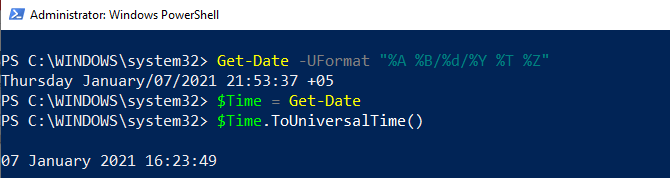
The Get-Date command uses a -UFormat parameter and some format specifiers to return the local system’s current date and time. The format specifier %Z specifies the Universal Time Coordinate offset of +05.
A variable $Time store the current date and time result returned by Get-Date. The returned value ($Time) calls the ToUniversalTime() method to convert the local system’s current date and time to UTC offset.
Create a timestamp using Get-Date -Format:
To create a timestamp using the Get-Date -Format, let’s see the following cmdlet example:
- $timestamp = Get-Date -Format o | ForEach-Object { $_ -replace “:”, “.” }
- New-Item -Path D:\TestFolder\$timestamp -Type Directory
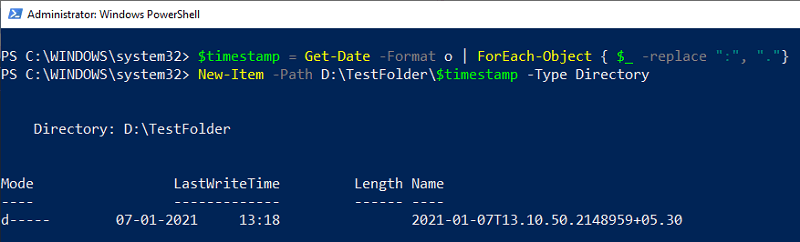
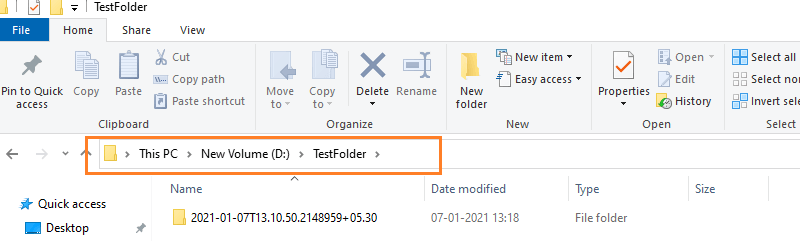
In the above example, the format specifier creates a timestamp String object for an input directory name. This timestamp contains values of date, time, and UTC offset.
In the above command, a variable $timestamp stores the results of the Get-Date command. Get-Date uses the Format parameter and a format specifier o that creates a timestamp String object in lowercase.
The object is sent back through the pipeline to ForEach-Object, and variable $_ represents the current pipeline object. The timestamp string values are specified by colons, which are replaced by periods.
The New-Item uses a -Path parameter that determines the location for the newly-created directory. A variable $timestamp included in the path represents the directory name, and the -Time parameter indicates that a directory is created.
Leave a Reply